 Sparrow
Everything you need to use Sparrow
Sparrow is a desktop app for macOS and Windows. It listens to your call, notices when someone asks a question and writes an answer you can say in your own words. Start with the five-minute setup, then keep the shortcuts handy.
New to Sparrow?
- Download Sparrow for your computer and open it.
- Allow audio access when your computer asks.
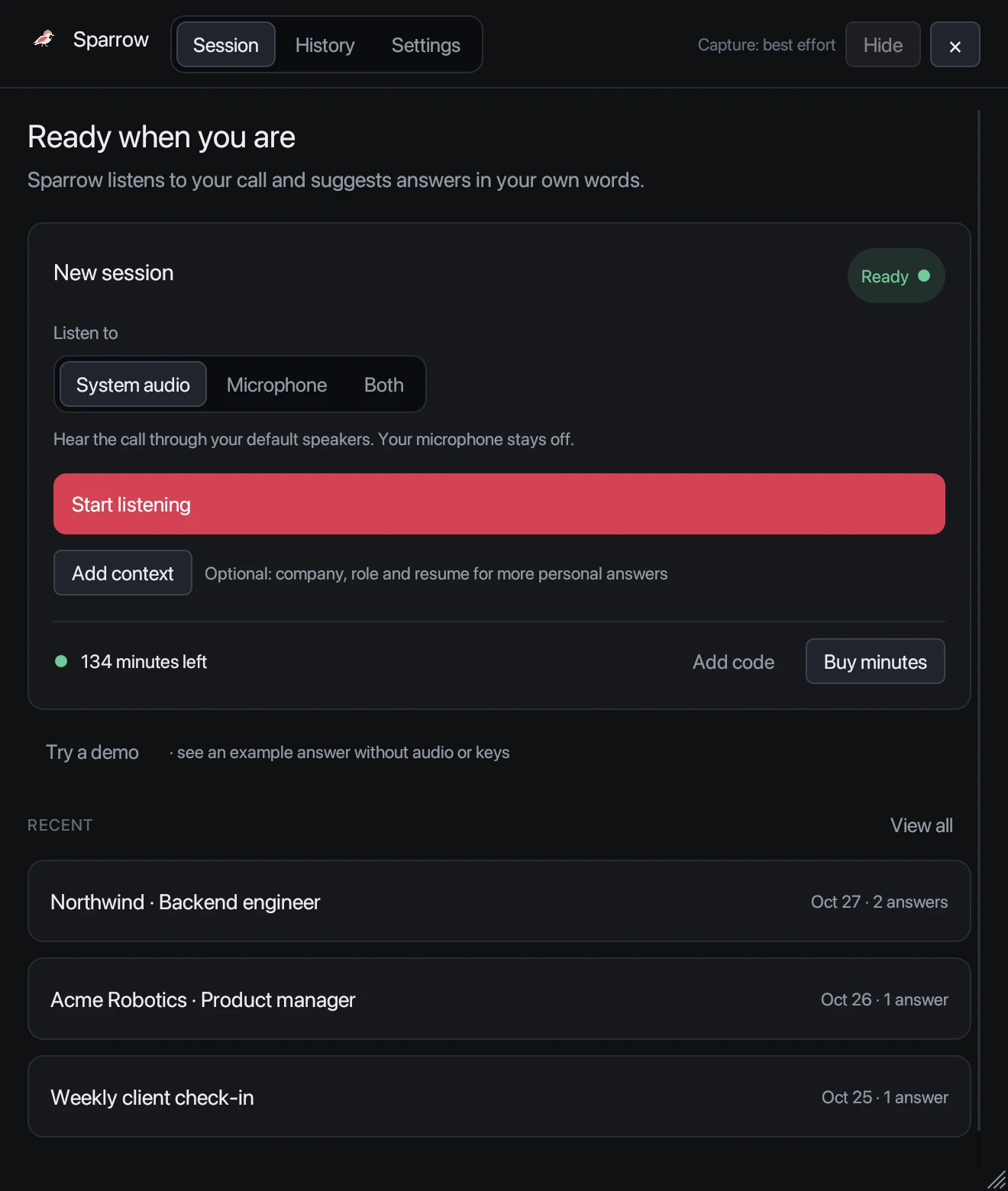
- Pick System audio, join your call and press Start listening.
Every computer gets 20 free minutes. No account or card. Read the full setup guide or follow the step-by-step tutorial.
Guides
Getting started
Download and install Sparrow on macOS or Windows, allow audio access and run your first live session with 20 free minutes.
Live sessions
Choose what Sparrow listens to, add context and a resume, get automatic answers, ask your own questions and review the transcript.
Coding answers and screen analysis
Capture a coding problem from your screen, pick your language and get an approach with complete code side by side.
Keyboard shortcuts
Every Sparrow shortcut on macOS and Windows: hide and show, answer the latest speech, click-through, switch answers and quit.
Window, screen sharing and privacy
Keep Sparrow readable and out of the way: opacity, answer size, always on top, Hide, click-through, and what screen sharing can see.
Minutes, codes and billing
How Sparrow's free trial, minute packs and purchase codes work, how time is counted to the second, and how to check your balance.
History and exports
Find past sessions, search questions and transcripts, open a full report and export it as Markdown. Everything stays on your computer.
Settings reference
Every section of Sparrow's Settings explained: minutes, audio and answers, window and reading, coding answers, app name and icon, advanced options and updates.
Troubleshooting
Fixes for common problems: macOS or Windows won't open the app, no audio, echo, no answers, connection errors, missing minutes and updates.
Shortcuts worth remembering
See all keyboard shortcuts. Sparrow has no Dock or taskbar icon, so the hide and show shortcut is the quickest way back to it.