 Sparrow
Minutes, codes and billing
How Sparrow's free trial, minute packs and purchase codes work, how time is counted to the second, and how to check your balance.
How time is counted
- Time counts to the second while a session runs, from Start listening until the session ends, including screen analysis.
- Everything else is free: the home screen, History, Settings, the demo and time between sessions.
- Your balance is shown on the home screen, in the session bar during a call and in Settings → Minutes. Press Refresh there to update it.
- If you start with less than 30 minutes left, Sparrow asks before it begins. At zero, the answer being written finishes and the session ends.
Free trial
Each computer gets 20 free minutes once, the first time Sparrow connects. No account, email or card. Reinstalling Sparrow on the same computer doesn’t add another trial.
Minute packs
Minutes come in one-time packs: no subscription and nothing renews. See the current packs on the Plans page. Buy minutes in the app opens that page.
After paying, the confirmation page shows a purchase code that starts with SPRW-. It’s also saved once as Sparrow-code.txt in your downloads. Keep it until you’ve added it.
Add a code
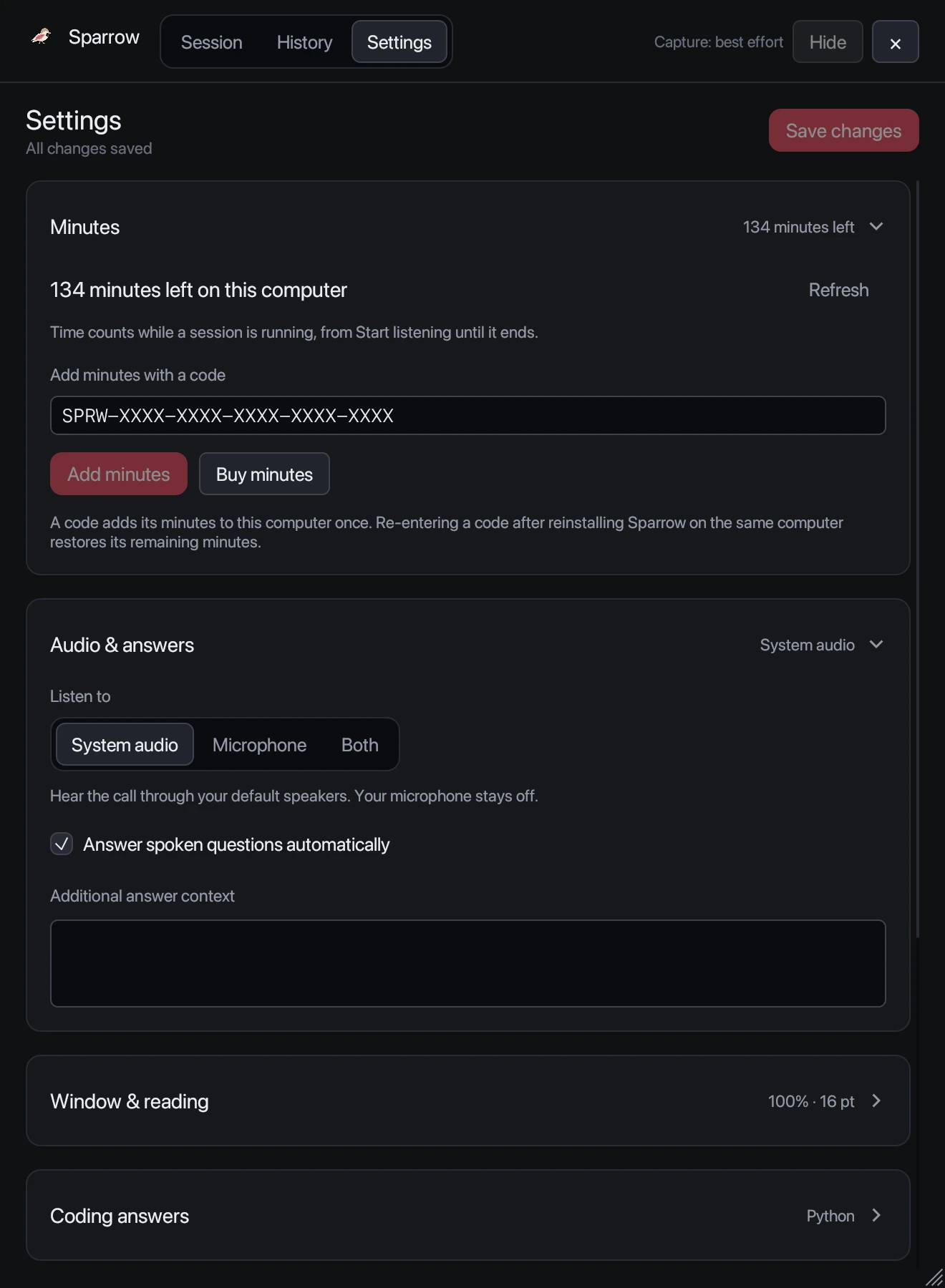
- Open Settings → Minutes, or press Add code on the home screen.
- Paste the code into the field and press Add minutes.
- The new balance appears straight away.
- A code adds its minutes to one computer, once. Minutes can’t be moved to another computer.
- If you reinstall Sparrow on the same computer, enter the same code again to restore its remaining minutes.
- Lost your code? Contact support with the email you used at checkout.
Refunds
See the Refund Policy, including what happens with codes you haven’t used yet.
Still stuck? Contact support and tell us your operating system and what you see.