 Sparrow
History and exports
Find past sessions, search questions and transcripts, open a full report and export it as Markdown. Everything stays on your computer.
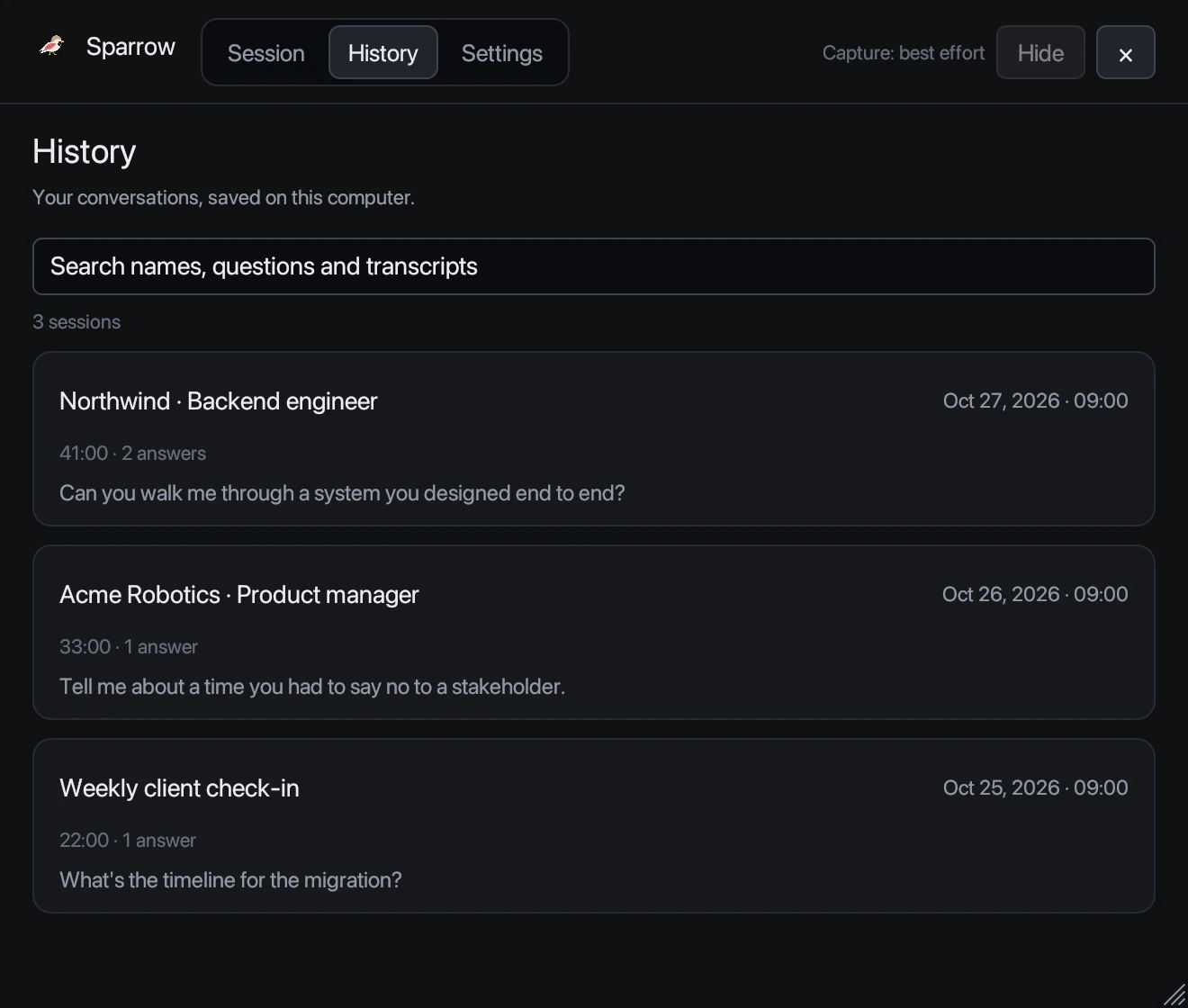
Find a session
- Open History in the top bar. The home screen also shows your three most recent sessions; View all opens History.
- Search matches session names, questions and transcripts, so you can find “that question about database design” weeks later.
- Each entry shows the date, length, number of answers and the first question.
Open a report
Select a session to see its full report: the transcript, every question and the answer Sparrow gave. Use it to prepare for a follow-up round, write up meeting notes or practise better answers.
Export as Markdown
In a report, choose Export Markdown… to save it as a Markdown (.md) file that opens in any text editor, Notion, Obsidian or Google Docs. Sparrow confirms when the file is saved, or tells you why it couldn’t be.
Where history is stored
Sessions are saved only on your computer, in Sparrow’s private data folder. They aren’t uploaded or synced. Screenshots from screen analysis are never saved in history. Sessions are saved every few seconds while they run, so if Sparrow or your computer stops unexpectedly, the session appears in History marked as recovered.
More on data: Where your data goes.
Still stuck? Contact support and tell us your operating system and what you see.