 Sparrow
Live sessions
Choose what Sparrow listens to, add context and a resume, get automatic answers, ask your own questions and review the transcript.
Choose what Sparrow hears
| Listen to | Use it for |
|---|---|
| System audio | Video and phone calls on your computer. Sparrow hears the call through your default speakers or headphones. Your microphone stays off. |
| Microphone | In-person conversations and practice, using your default microphone. |
| Both | The call and your own voice together. Use headphones so the call isn’t heard twice. |
Add context for personal answers
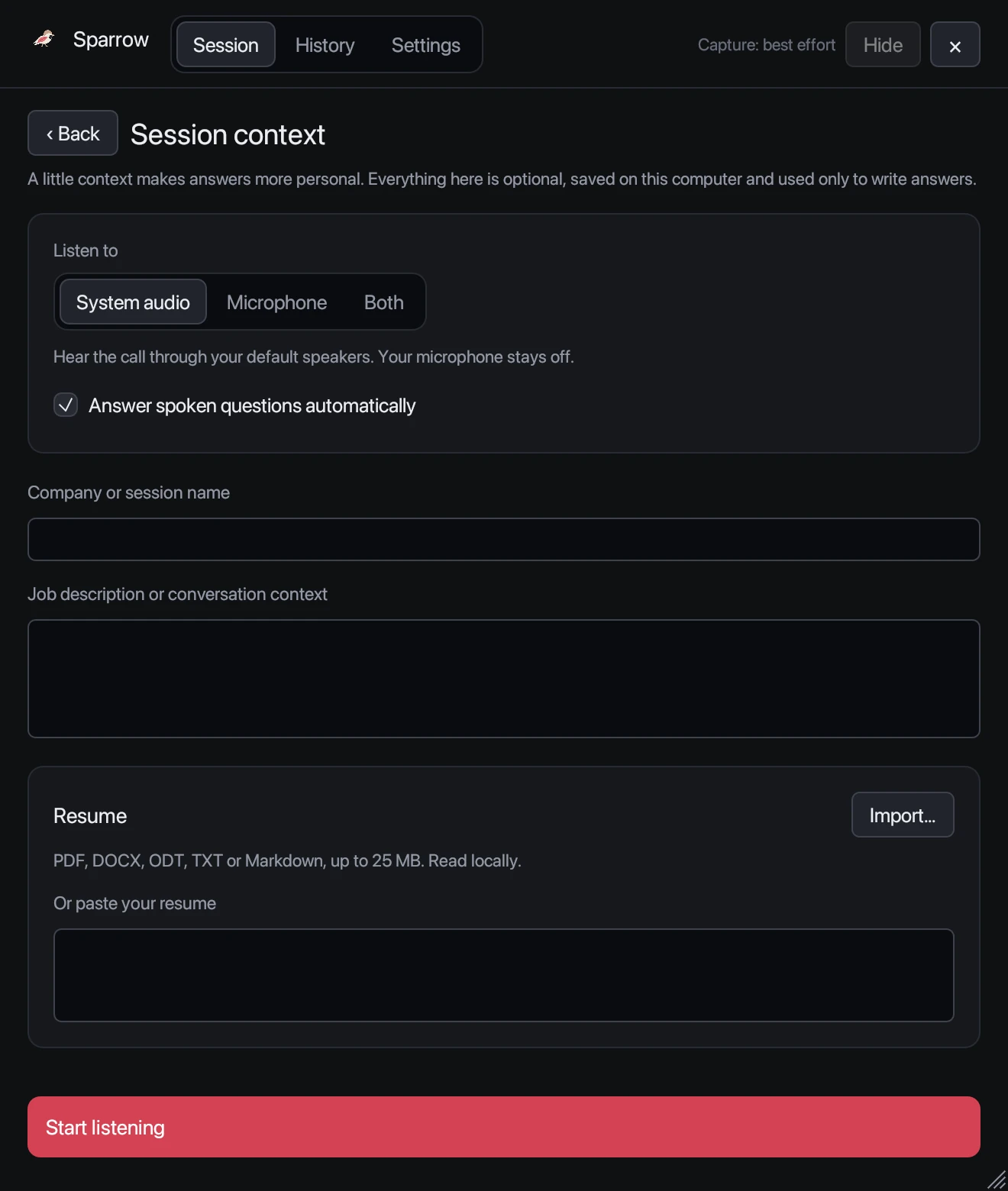
Press Add context on the home screen before you start. All of it is optional:
- Company or session name, for example “Northwind · Backend engineer”. It also names the session in History.
- Job description or conversation context: paste the posting, the meeting agenda or notes about the client.
- Resume: press Import… for a PDF, DOCX, ODT, TXT or Markdown file up to 25 MB, or paste the text. The file is read on your computer.
- Answer spoken questions automatically: on by default. Turn it off if you only want answers when you ask for them.
For context you want in every session, such as how you like to phrase things, use Settings → Audio & answers → Additional answer context.
Getting answers
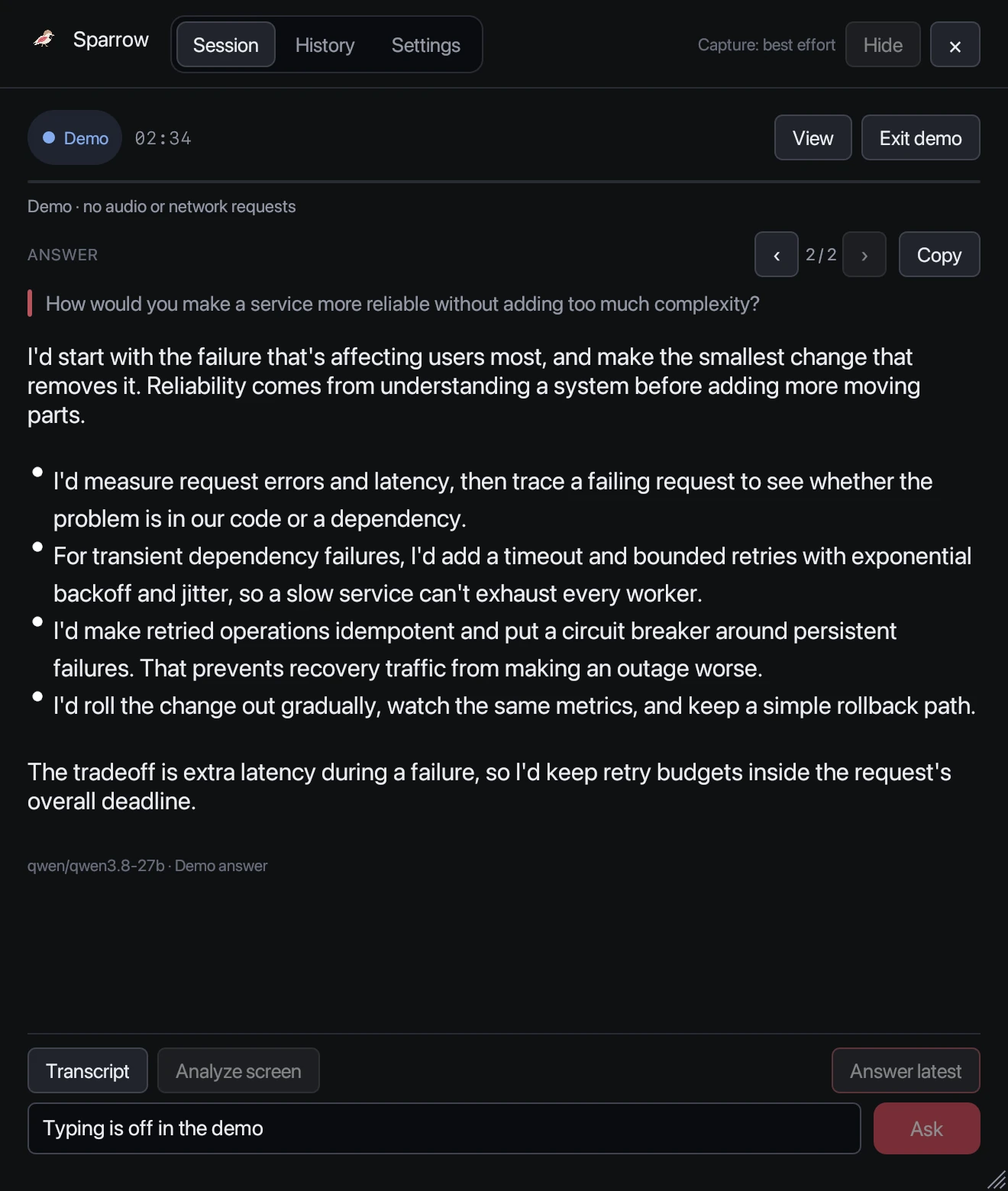
Sparrow transcribes the conversation and checks each finished question. Small talk and half-finished sentences are skipped. When someone asks something, the answer starts appearing within moments, written in the first person so you can say it naturally.
- Answer latest (Cmd/Ctrl+Shift+Enter) answers what was just said, including words still being transcribed. Use it when a question was implied rather than asked, or when automatic answers are off.
- Type a question in the box at the bottom and press Enter or Ask. Handy for follow-ups like “shorter” or “give an example from my resume”.
- Move between answers with the ‹ and › buttons, or Cmd/Ctrl+[ and Cmd/Ctrl+]. Latest jumps back to the newest one.
- Copy puts the current answer on your clipboard.
Live transcript
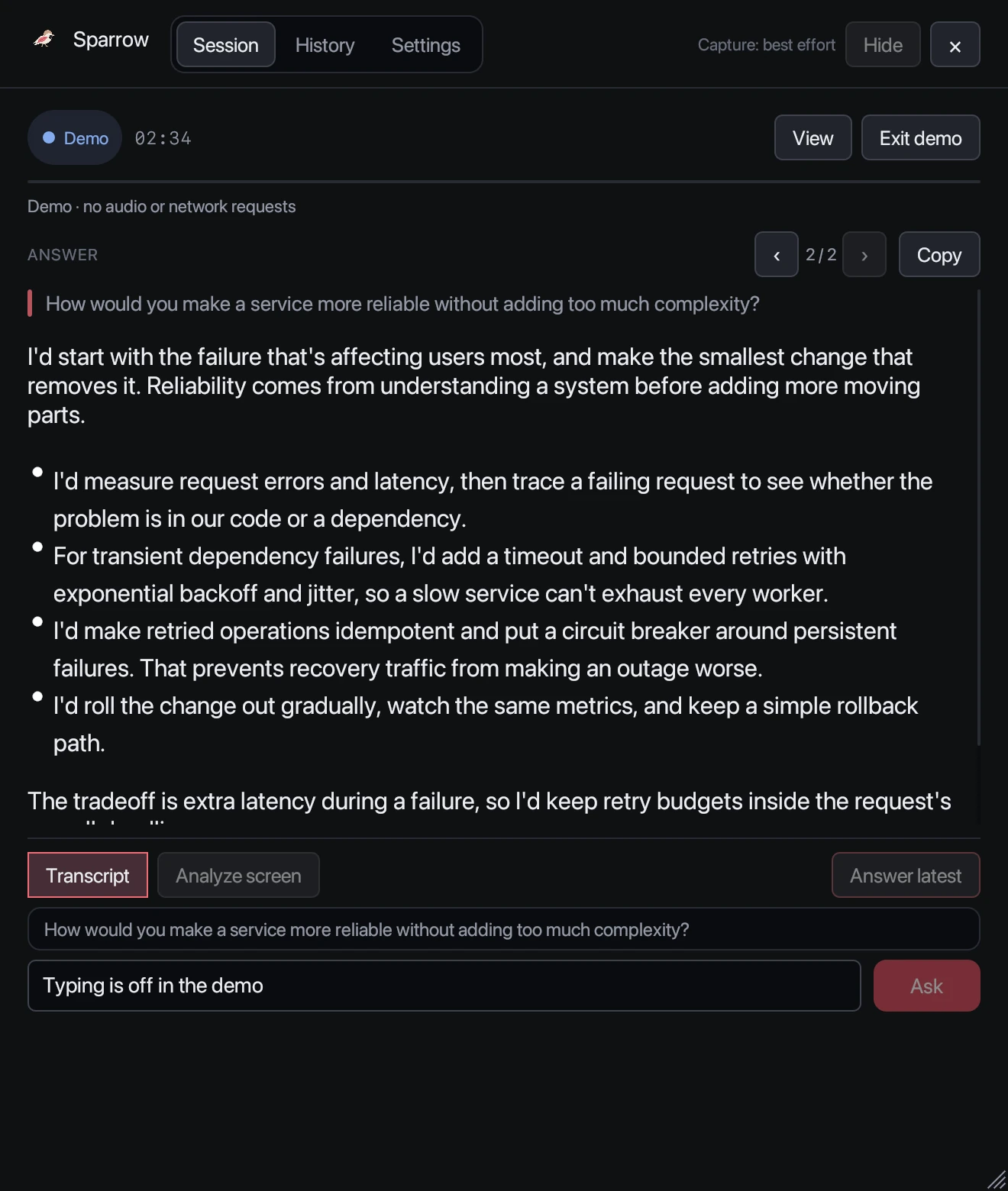
Press Transcript to show or hide the running transcript under the answer. It’s useful to check what Sparrow heard before you press Answer latest.
The session bar
While listening, the top of the session shows the listening state, the elapsed time and your minutes left. View adjusts window opacity and answer size on the fly. If you switch to History or Settings, a Live timer in the header brings you back.
Ending a session
Press End session, or quit with Cmd/Ctrl+Q, to stop listening and save the full report: transcript, questions and answers. Time stops counting the moment the session ends. If your minutes run out mid-call, the answer being written finishes, then the session ends. Sparrow warns you before you start if you have less than 30 minutes left.
Coding questions get their own layout. See Coding answers and screen analysis.
Still stuck? Contact support and tell us your operating system and what you see.