 Sparrow
Settings reference
Every section of Sparrow's Settings explained: minutes, audio and answers, window and reading, coding answers, app name and icon, advanced options and updates.
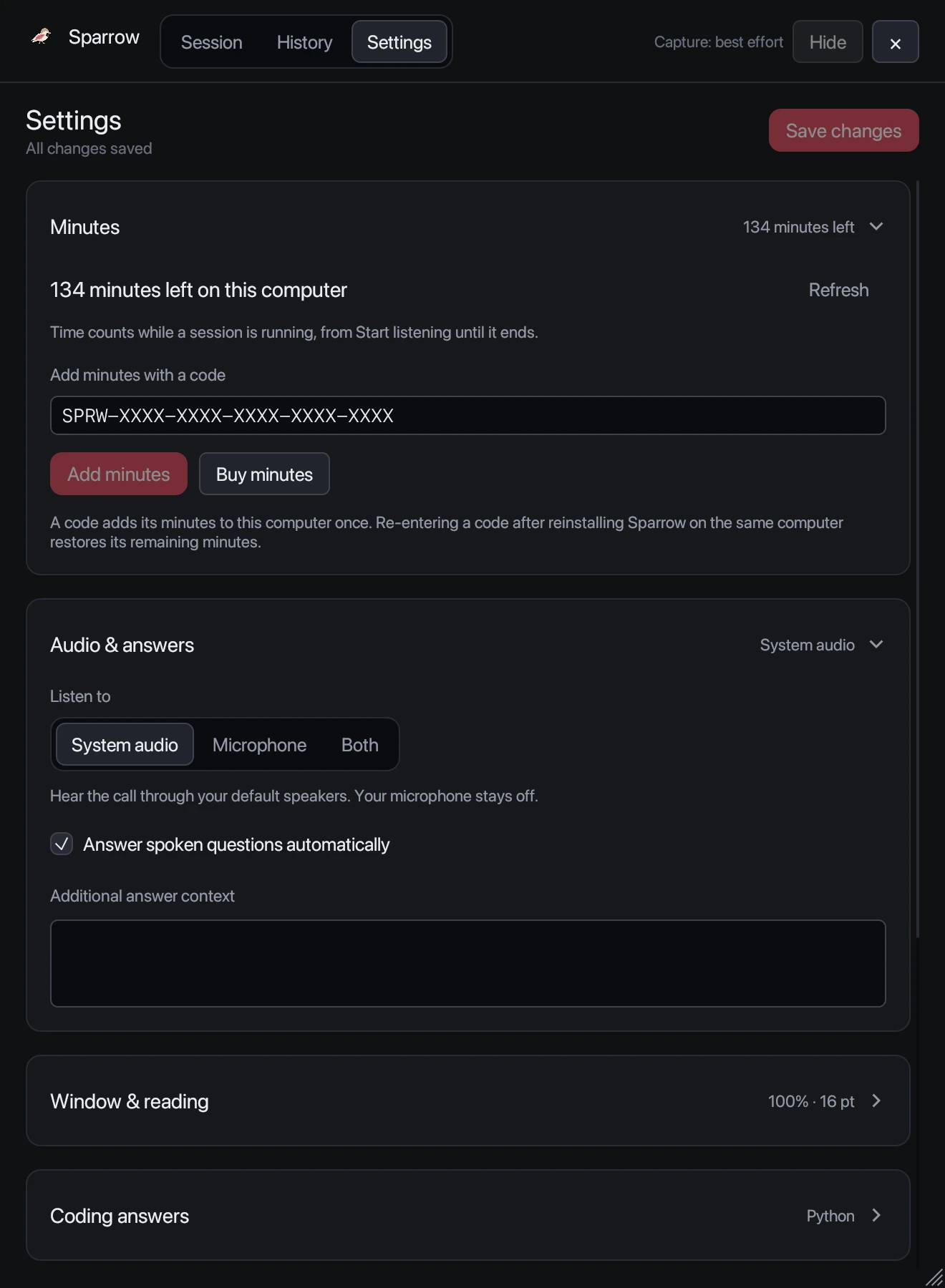
Saving changes
Change what you like, then press Save changes at the top. Discard undoes unsaved edits. Unsaved edits are kept while you switch pages. During a session you can still change window and reading settings and coding answers; audio settings need the session to end first.
Minutes
Your balance, Refresh, the purchase code field with Add minutes, and Buy minutes. See Minutes, codes and billing.
Audio & answers
- Listen to: System audio, Microphone or Both. The choice is remembered for the next session.
- Answer spoken questions automatically: when off, Sparrow only answers when you press Answer latest or type a question.
- Additional answer context (up to 5,000 characters): instructions or facts used in every session, for example “I’m a senior data engineer; keep answers under four sentences”.
Window & reading
- Window opacity: 30–100%.
- Answer size: 12–26 pt, with a live preview.
- Keep above other windows.
- Exclude from supported screen captures. Read what screen sharing can see before relying on it.
Coding answers
- Language: your default for code, from 13 languages. The problem’s own editor language wins when it’s clear.
- Show code on the left, approach on the right.
Disguise
Shows Sparrow under another name and icon on your computer, for example if you’d rather not have “Sparrow” in your Applications folder. Choose a name and a PNG or JPEG icon up to 8 MB, press Save changes, then apply. Sparrow renames its app and launcher and restarts; reopen it under the new name. It never overwrites an existing app with the same name, and your history and minutes are kept. System tools can still identify the app. Turn it off to go back to Sparrow’s own name and icon.
On a Mac, this section also has Enable launch shortcut, which opens Sparrow with Cmd+Option+Shift+Space even after you quit it.
Advanced
- Prepare answers while checking the question: starts writing an answer while Sparrow is still deciding whether something was a question. Answers can appear sooner.
- Fallback delay (400–10,000 ms): if the main answer model is slow to start, a backup model races it and the first one to write wins. Lower values favour speed.
Keyboard shortcuts
A list of every shortcut. The same list is on Keyboard shortcuts.
About & updates
- Shows the version you have and when Sparrow last checked for updates.
- Check for updates checks now. With Check for updates automatically on, Sparrow checks a few seconds after it opens and every six hours.
- When a new version is out, a notice appears with Download update, which opens the download page. Install the new version over the old one; your history, settings and minutes stay.
Still stuck? Contact support and tell us your operating system and what you see.